The Guide
What is a PWA, actually?
A PWA (Progressive Web App) is a website that behaves like an app. Visit it once in your phone's browser, add it to your home screen, and it opens full-screen from then on — no app store, no account, no separate download.
The difference is what's happening behind the scenes: updates arrive the moment you open it, there's no store review process in the way, and it's a fraction of the size of a downloaded app.
Your data, your business
Every app we build skips the things most free apps rely on: no app-store account, no background location or contact tracking, no ad network reading your habits to build a profile on you.
Your planner data lives on your device by default — or in your own Google Drive if you turn on backup. We don't operate servers that collect it, and we never see it.
Why this matters more than people think → · Read our full Privacy Policy →
How backups work
All of our apps offer real Google Drive backup — you connect your own Google account, and your data is saved directly to a file in your own Drive.
The first time you connect, Google walks you through two quick screens like the one shown here. The first, "Make sure you trust [app name]," asks you to review our Privacy Policy and Terms of Service before continuing, that's Google's standard step for any app connecting to your account, not a sign anything is wrong. The second lists exactly what access you're granting: create, edit, and delete only the specific files you use with this app, nothing else in your Drive. Tap "Continue" on both screens to finish connecting.
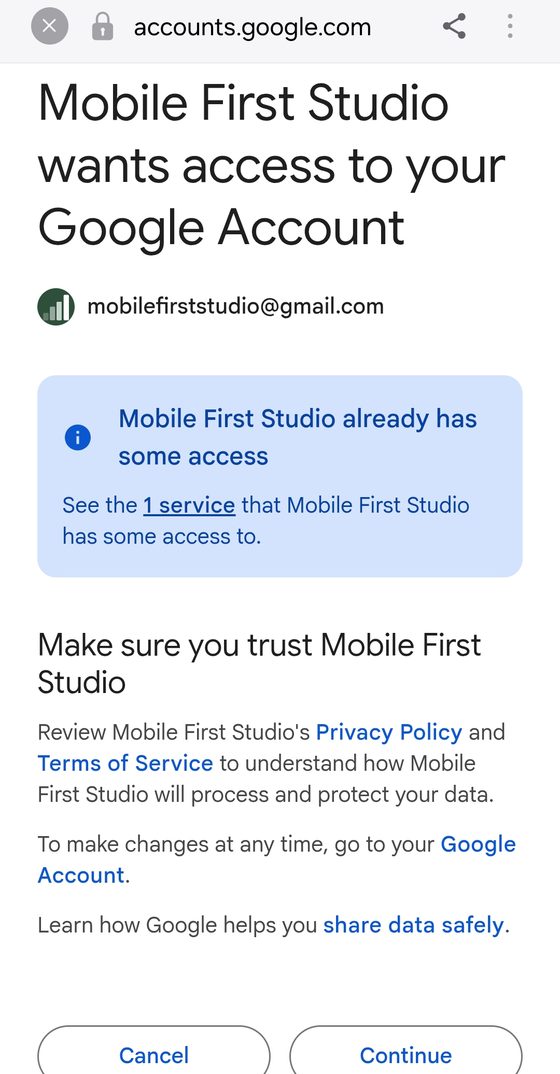
We use Google's restricted drive.file scope, which means the app can only see the file it created, nothing else in your Drive.
Prefer to keep everything offline? Export/Import works entirely on-device too, no Google account required — just a file you save and load back in yourself.
Either way, we never see, store, or transmit your backup. It exists only where you put it.
Add any app to your home screen
The same two-minute process works for every Mobile First Studio app. It only takes a few taps, and from then on it opens instantly, full screen, no browser bar in the way, no app store, no account, no download wait. Find your phone below and follow along.
On iPhone
This only works in Safari. If you opened the link in Chrome, Gmail, or another app, iPhone won't let those add it to your home screen, that's an Apple rule, not a mistake on your end. Look for the blue compass icon and open the link there instead.
- Open the app's link in Safari.
- Tap the Share icon, the square with an arrow pointing up, along the bottom of the screen.
- Scroll down and tap "Add to Home Screen," then tap "Add" in the top right.
On Android
- Open the app's link in Chrome.
- Tap the three-dot menu in the top right.
- Tap "Add to Home Screen" or "Install app," then confirm.
- Open the app's link in Samsung Internet.
- Tap the menu icon (three lines) at the bottom of the screen.
- Tap "Add page to," then tap "Home screen," then confirm.
Using a different browser? Look for "Add to Home Screen" or "Install app" in its menu, most Android browsers offer it under one of those two names.
Don't see "Add to Home Screen" in Chrome?
Open the three-dot menu and scroll down to check for "Desktop site." If it's checked, uncheck it and reload the page. That setting hides the install option and can also make the page look shrunk down until you pinch to zoom, unchecking it fixes both.
Common questions
Do I need to create an account to use an app?
No — add it to your home screen and start using it right away, no sign-up required.
Will my data carry over to a new phone?
Yes, if you've connected Google Drive backup — just reconnect on the new device and import your data.
iPhone or Android — does it matter?
No — every app works the same on both.
Do you sell or share my data?
No. That's the short version — the full details are in our Privacy Policy.
What if an app isn't working right?
Use the feedback page to report it — we read every message.
Curious what's shipped recently, or want to flag something that isn't working?